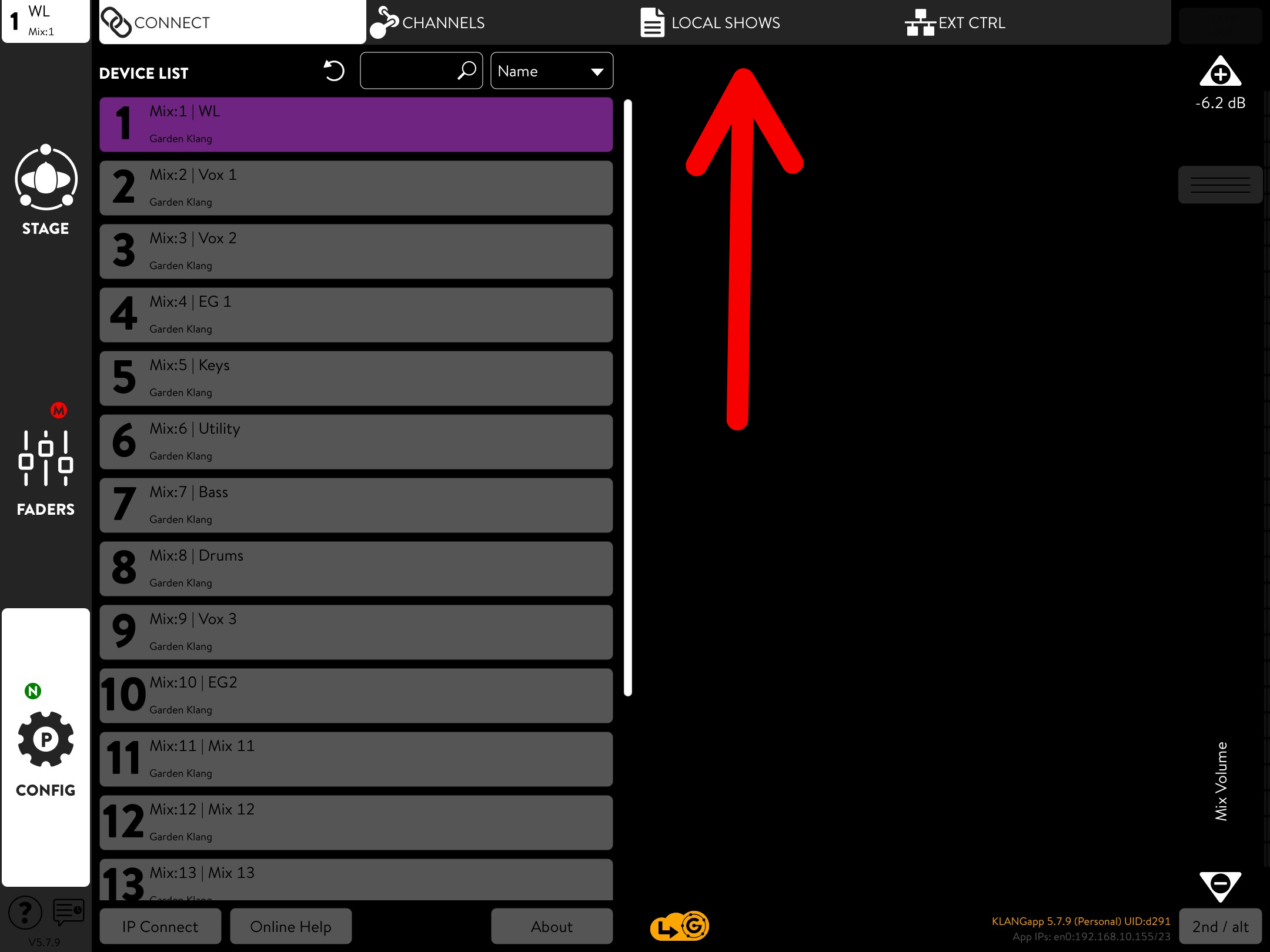
Loading Your Preset
When you open the app, it should automatically take you to the Configure tab. Select Local Shows located at the top of the screen to load or create your preset.

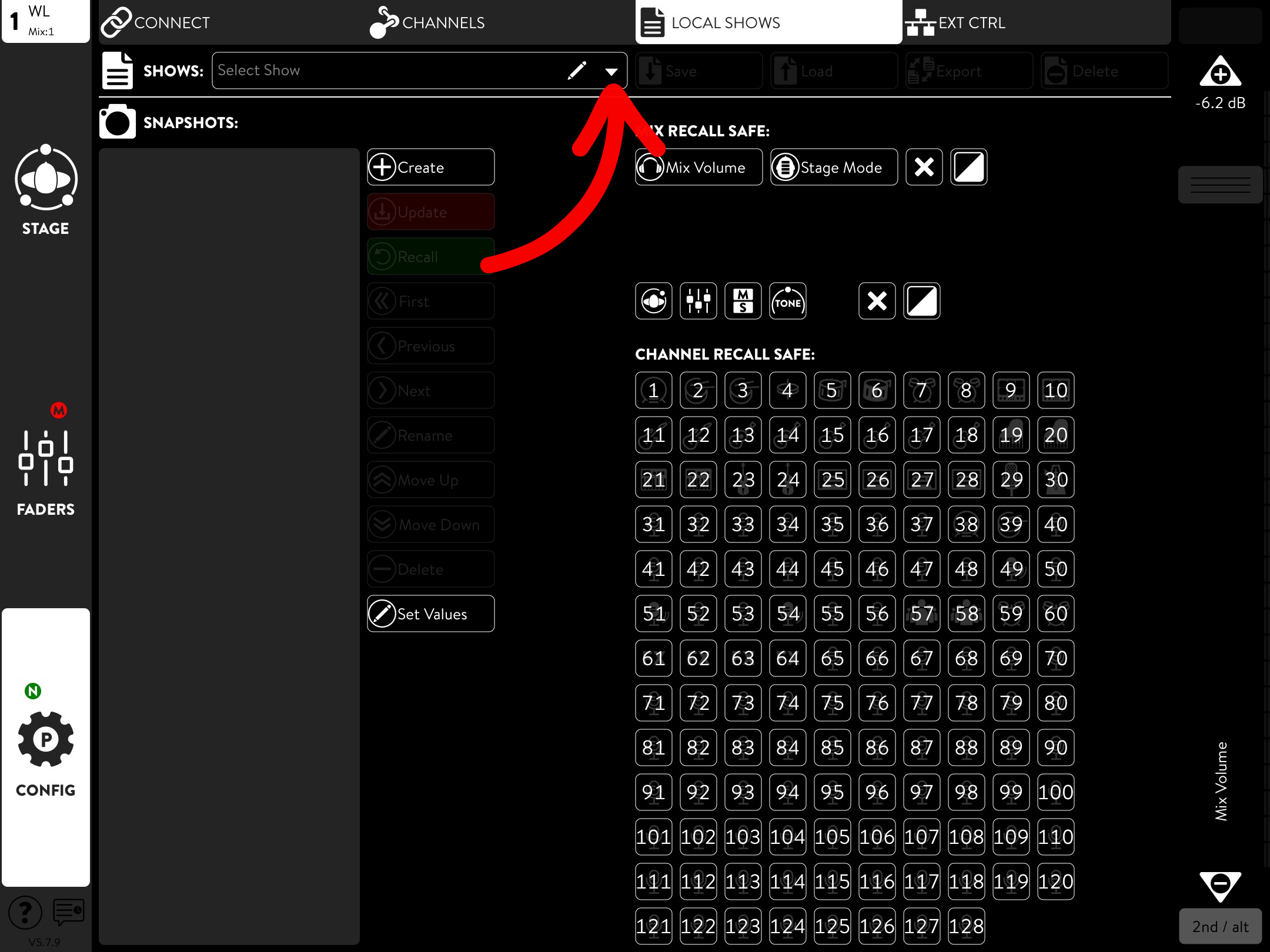
Once navigated to the Local Shows tab, select the dropdown menu on the Shows bar to open up the selection of presets and locate your preset.
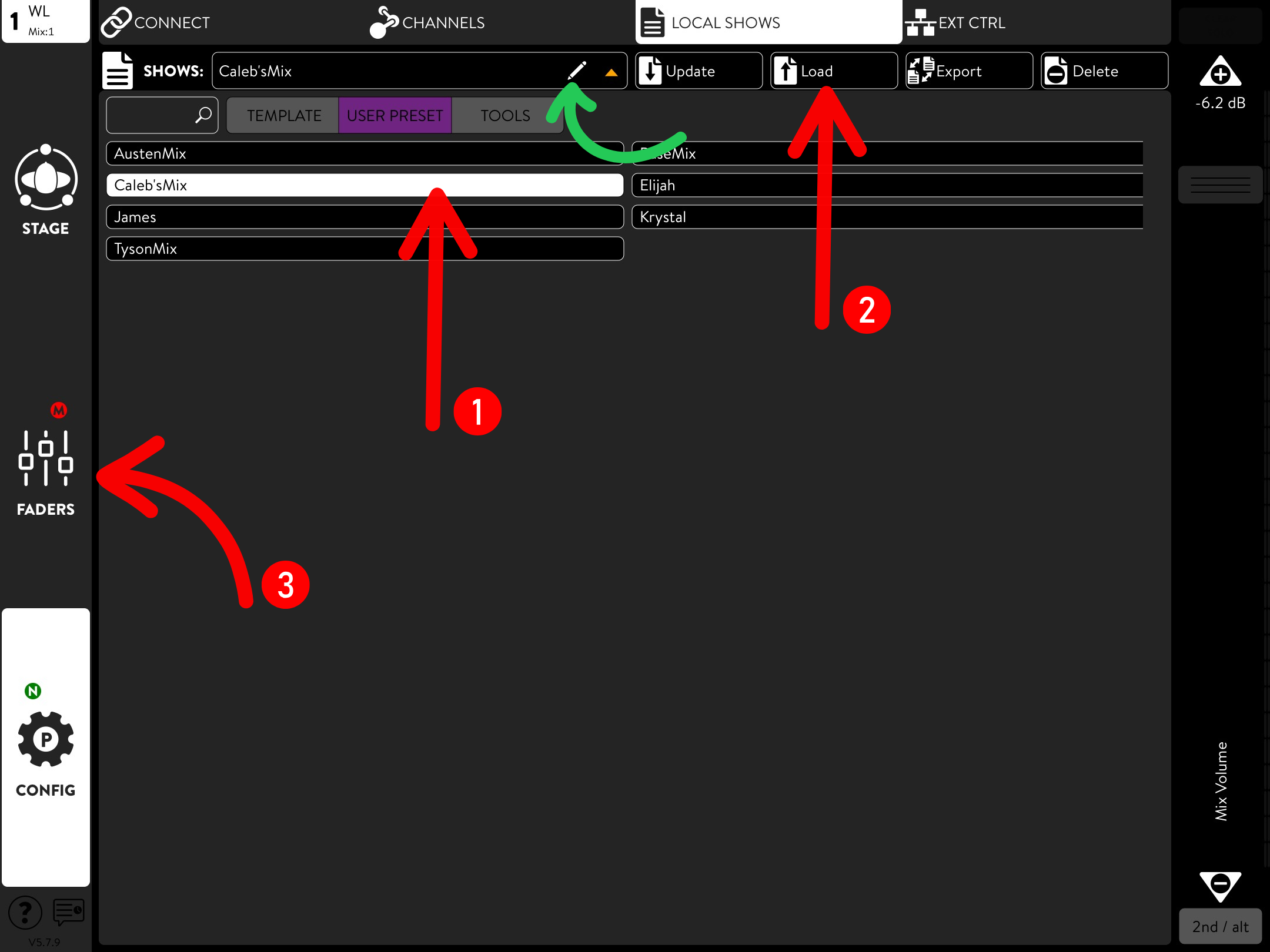
1. Once you’ve located your preset in the dropdown menu, select it.
2. After selecting your preset, press Load. (DO NOT press Update when loading your preset, as that will erase your saved preset and update it to wherever the faders are currently set in the app.)
3. Your preset is now loaded.
Next, locate and select the Faders tab on the left-hand side of the screen to access the channels.
*If you need to create a preset, select the pencil icon located on the Shows bar. Type in your name and press Save.
Note: Every time you want to save your changes when mixing, navigate to Local Shows under the Configure tab and select Update.